ThreadHub turns AI chats into a reusable workspace.
Read long conversations, copy clean Markdown, save key replies, annotate ChatGPT threads, and export your AI work without leaving the page.
Why ThreadHub exists
Long AI threads are hard to scan.
A 40-message conversation with code, tables, and formulas becomes an unscrollable wall. Important answers disappear into the noise.
Formulas and Markdown often break when copied.
Pasting a code block into Notion or a LaTeX equation into Obsidian turns it into garbled text. Manual cleanup takes longer than the research did.
Useful answers get buried.
That detailed system design answer, the working regex, the essay outline: scroll past it once and it is gone. There is no way to star, tag, or search.
Sharing or archiving takes too many manual steps.
Screenshot, paste, reformat, rename the file. Getting one clean AI answer into a research note or project folder should not take five minutes.
Four tools. One toolbar.
ThreadHub adds a lightweight layer on top of your existing AI chats. No new interface to learn, no account required.
Distraction-free reading for long AI replies
Open any AI message in Reader Mode: a clean, centered panel that renders code, tables, and LaTeX formulas without forcing you to fight the original chat UI.
- Code blocks render with language-aware colors and stay easy to copy.
- LaTeX equations display as readable math with copyable source for notes and papers.
- Tables scroll horizontally without breaking the surrounding answer.
- Structured Markdown keeps headings, lists, bold text, and code fences intact.
useEffect Cleanup - How It Works
The cleanup function is returned from your effect callback. React calls it before the component unmounts and before each re-render that changes the dependency array.
const handler = (e) => handleInput(e.key);
window.addEventListener('keydown', handler);
return () => window.removeEventListener('keydown', handler);
}, []);
Copy, export, or bookmark any reply in one click
A compact toolbar appears on every AI message. Copy clean Markdown, export a reply, or save it to your local ThreadHub library without leaving the chat.
- Copy MD pastes into Typora, Notion, or Obsidian with clean structure.
- Export saves replies as Markdown, PDF, or PNG for project archives.
- Bookmark stores useful answers locally by platform and folder.
- Word count shows inline length without opening another tool.
window. Those listeners accumulate across route changes, so every keypress can trigger duplicate handlers.A searchable library of your best AI answers
Bookmarked replies go into a local knowledge base. Browse by folder, filter by platform, search saved content, and jump back to the original conversation.
- Folders organize by project, topic, workflow, or research trail.
- Platform filters separate ChatGPT, Claude, Gemini, and DeepSeek saves.
- Preview and jump read the answer inline, then open the original chat.
- Export and backup move your saved library between browsers or devices.
useEffect cleanup patterns
The cleanup function is returned from your effect callback. React calls it before the component unmounts and before the next render that changes the dependency array...
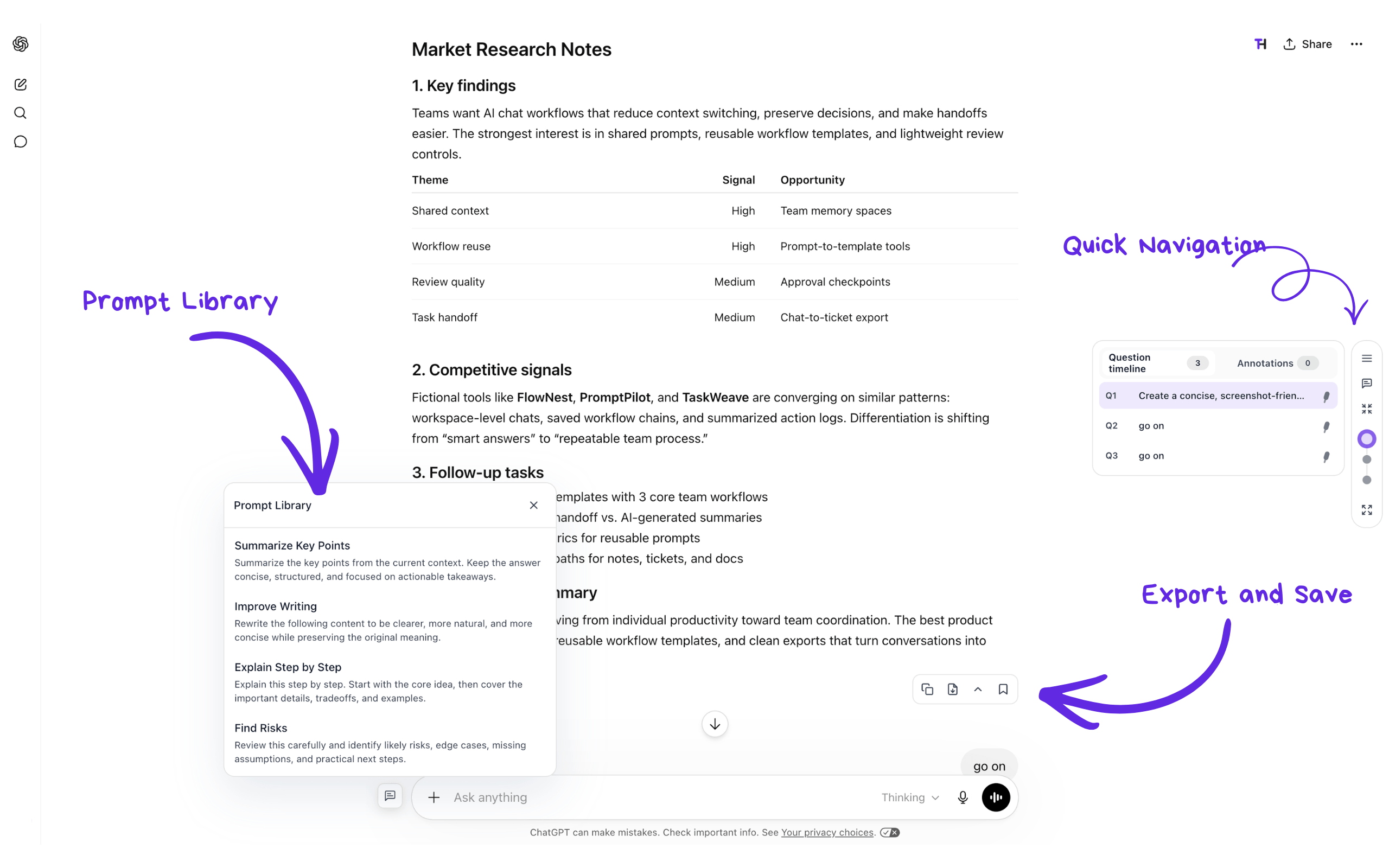
Navigate long ChatGPT threads. Annotate anything.
A persistent question timeline lets you jump to any message instantly. Collapse replies you have read, highlight text, add private notes, or turn a selection into a follow-up.
- Question timeline keeps each prompt available as a one-click jump.
- Message folding reduces scroll distance on long technical threads.
- Highlight and annotate attach private notes to important passages.
- Follow up with context send selected text into a reusable prompt.
How it fits into your flow
Open a supported AI chat page.
Install ThreadHub from the Chrome Web Store. It activates automatically on ChatGPT, Claude, Gemini, and DeepSeek.
Use ThreadHub tools inside the conversation.
Hover any AI reply to reveal the toolbar. Open Reader Mode for long answers or use the ChatGPT timeline to navigate and annotate.
Save, export, or continue the work.
Bookmark answers to your local library. Export to Markdown, PDF, or PNG. Everything stays on your machine.
What ThreadHub does, and does not do, with your data
ThreadHub reads AI conversation content only when you trigger a specific action. It does not run a background process on every page you visit.
Local-first storage
Bookmarks, notes, annotations, and prompt templates are stored in your browser. They do not leave your device unless you export them.
No background data collection
ThreadHub does not log conversations, send analytics about your AI usage, or track which chats you open.
Content processed on demand
When you click Copy MD or Bookmark, ThreadHub reads the message text to process that request. It does not scan continuously.
No server-side AI processing
ThreadHub is a formatting, export, and organization layer. It does not send your conversations to another AI API.
Permissions explained
Host permissions inject the toolbar and timeline on supported chat pages.
Clipboard write copy Markdown only when you click the copy button.
Storage save bookmarks, annotations, and prompt templates locally.
Tabs open or focus the original chat tab for saved bookmarks.
Frequently asked questions
Which AI platforms are supported?
ChatGPT gets the full feature set: Reader, Capture toolbar, Bookmarks, Question Timeline, Message Folding, Annotations, and Prompt Library. Claude, Gemini, and DeepSeek support the core toolbar and bookmarks library.
Is ThreadHub another AI chatbot or model aggregator?
No. ThreadHub does not provide a new model or proxy your requests. It is a reading, organization, and export layer that runs on top of the AI platforms you already use.
Where is my data stored?
Bookmarks, annotations, and prompt templates are stored in your browser local storage. You can export your library as JSON and import it on another browser.
Can I export to Markdown, PDF, and PNG?
Yes. The export button can save a single reply as Markdown, PDF, or PNG. Markdown preserves code blocks, headings, lists, and tables.
Does every feature work on every AI platform?
No. ChatGPT is the most complete platform. Claude, Gemini, and DeepSeek support the core toolbar; timeline and annotation features depend on each page structure.
Can I disable features I do not use?
Yes. Reader, Toolbar, Bookmarks, Timeline, Message Folding, Annotations, and Prompt Library can be toggled independently in extension settings.
Start using your AI conversations, not just having them.
Free to install. No account required. Your data stays in your browser.